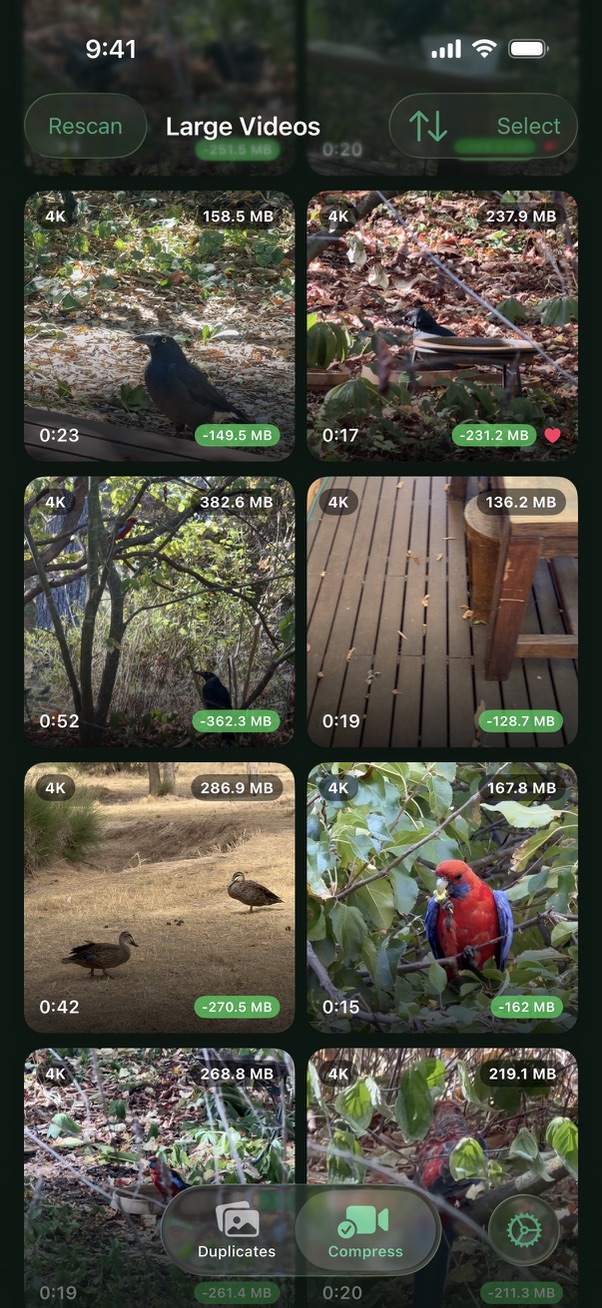
Open Dupie, go to Videos, and select a video
Open Dupie on your iPhone and tap the Videos tab. Dupie scans your library and lists your videos sorted by file size, with the largest files at the top. Tap the video you want to compress — each video shows its current file size and estimated compressed size so you know what to expect.
Choose your compression settings
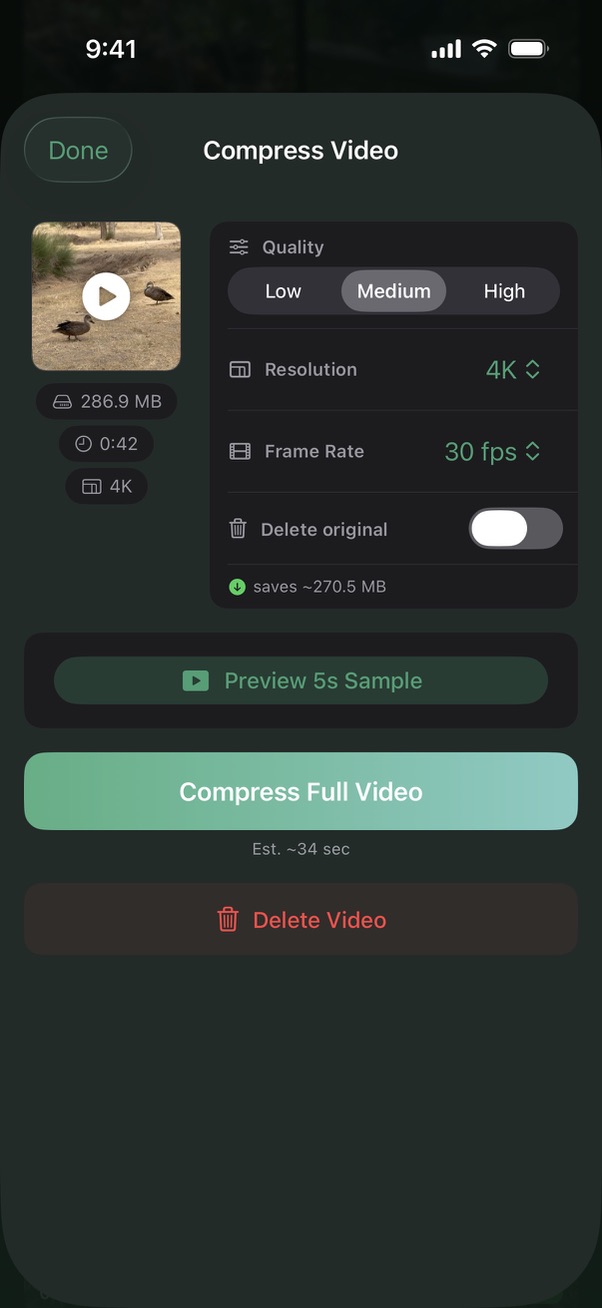
Select a quality level to control how much the file is compressed:
- High — 6 Mbps target bitrate. Minimal quality loss, moderate file size reduction.
- Medium — 3 Mbps target bitrate. A great balance for most videos.
- Low — 1 Mbps target bitrate. Maximum compression, best for archiving or sharing.
You can also reduce the resolution (1080p, 720p, or 480p) and frame rate (60fps or 30fps) to shrink files further — or leave them at Original to preserve the source quality. If you want the compressed video to replace the original in your camera roll, enable Delete Original before compressing.
Preview before you compress
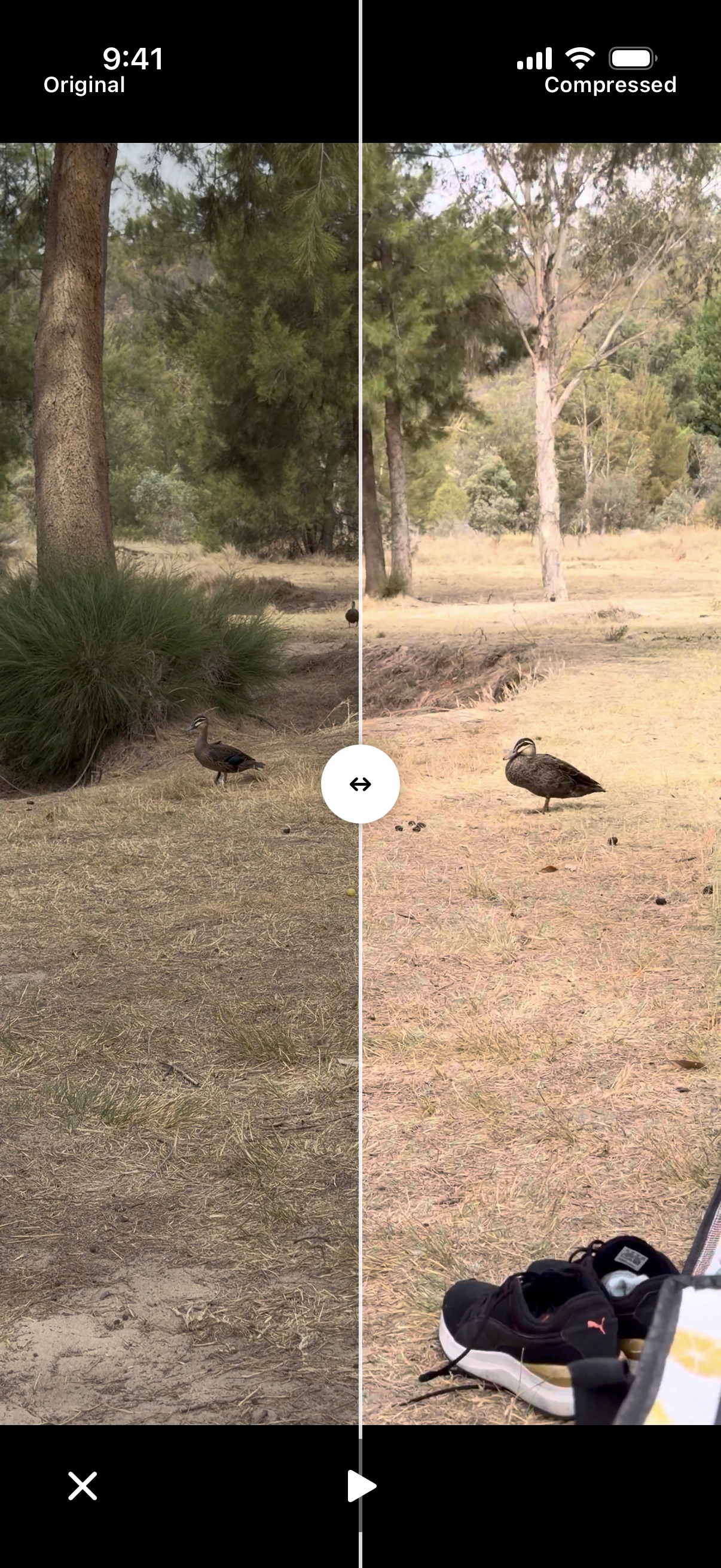
Not sure which settings to use? Tap Preview to generate a 5-second clip at your chosen settings. Dupie plays the original and compressed versions side by side so you can judge the quality difference before committing.
Compress and save
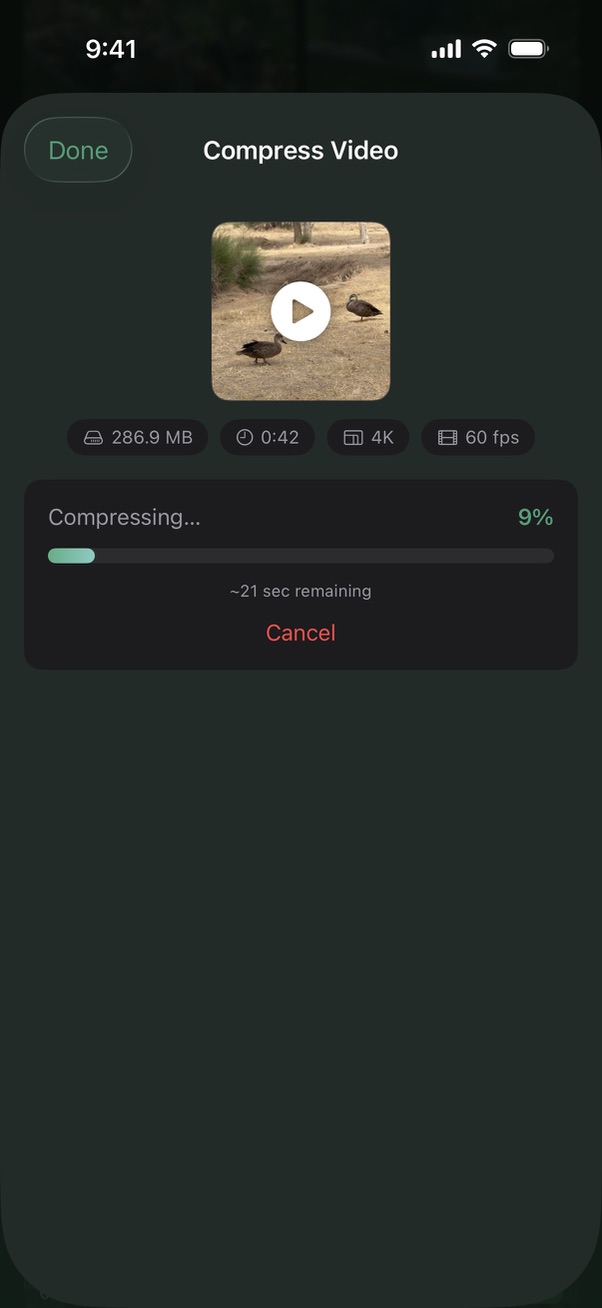
Tap Compress. Dupie re-encodes the video on your device and saves it to your camera roll. If you enabled Delete Original, the compressed version will take the original's place. When done, Dupie shows you how much storage you've freed up.
Videos taking up half your storage? Download Dupie and compress them right now.
Download Dupie Free →