iOS Guide

How to Find and Delete
Blurry and Dark Photos on iPhone

Between accidental shots, motion blur, and poorly lit evenings, most camera rolls are hiding dozens of photos that aren't worth keeping. Dupie automatically surfaces every blurry and underexposed photo so you can clear them out without scrolling through thousands of shots.

You'll need Dupie to follow this guide. It's free to download — no sign-up required.

Download Dupie Free →
1

Open Dupie and go to Blurry & Dark Photos

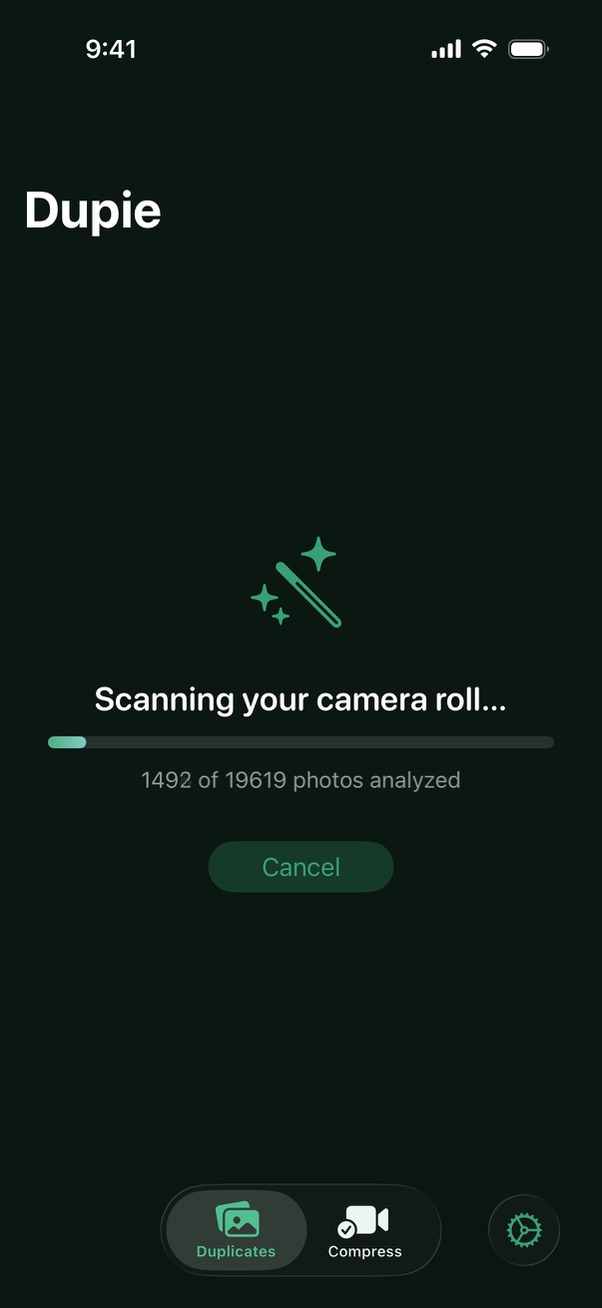
Open Dupie on your iPhone. If this is your first time, tap Allow Full Access when prompted to let Dupie scan your library. Then tap Blurry & Dark Photos on the main screen — Dupie automatically scans your library and surfaces photos that are blurry, out of focus, or too dark to be worth keeping.
2

Review each photo one by one

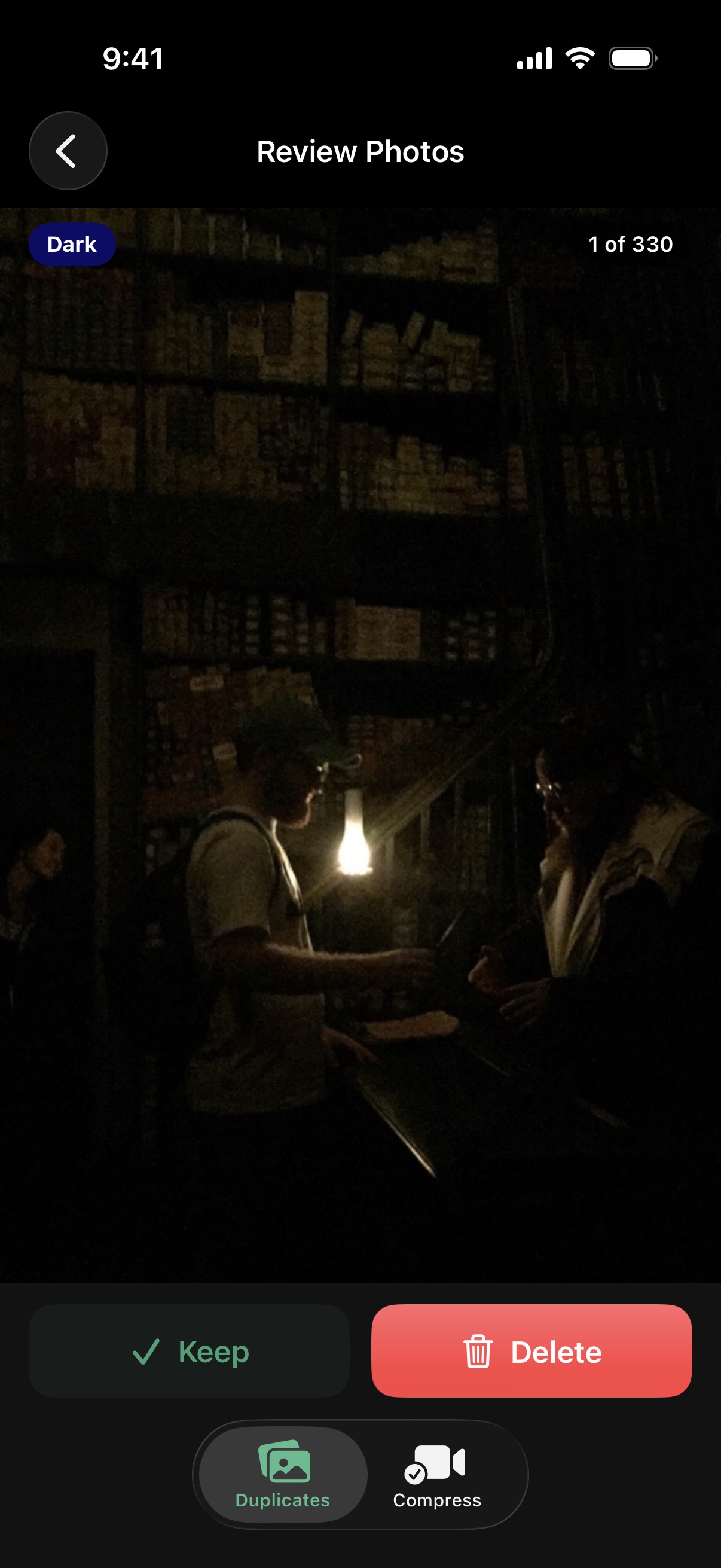
Dupie presents each flagged photo one at a time in a swipe-to-decide interface — similar to a card stack. For each photo, choose to Keep or Delete it before moving on to the next.
3

Confirm batch deletion

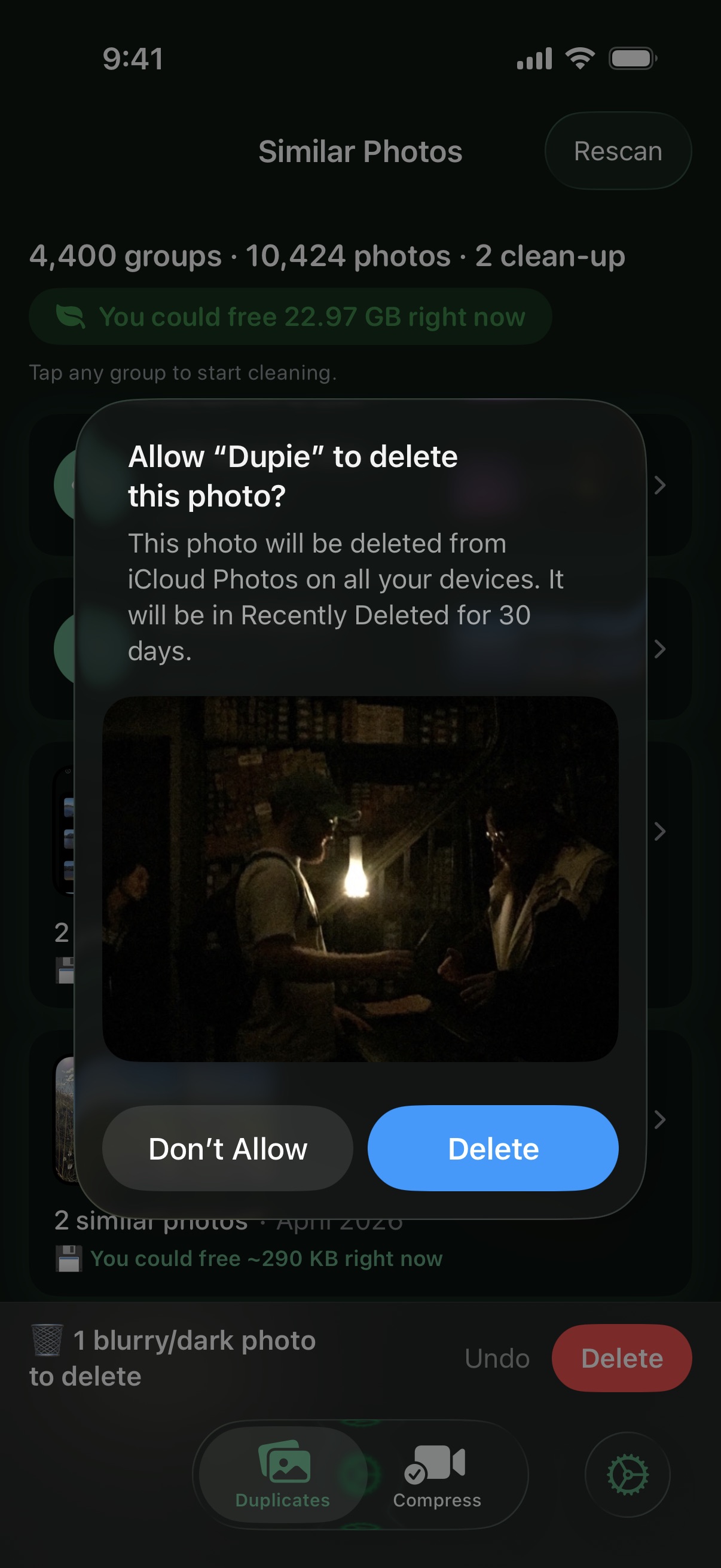
Once you've reviewed all your photos, Dupie collects everything you marked for deletion and presents them for a final batch review — so you can double-check before anything is removed. Confirm to delete. Photos go to Recently Deleted for 30 days, so nothing is gone for good until you choose to empty it.
Ready to clear out the clutter? Dupie is free — start scanning in under a minute.

Download Dupie Free →

Frequently asked questions

Dupie uses on-device AI to measure the sharpness of every photo. It detects motion blur (from a moving subject), camera shake (from an unsteady hand), and out-of-focus shots. Photos below a quality threshold are flagged for your review.
Dupie flags photos for your review — it never deletes anything automatically. Intentional artistic choices (a deliberately blurred background, a moody dark scene) may be flagged, but you always have the final say. Nothing is deleted until you tap confirm.
Dupie flags photos where the subject is significantly underexposed — so dark that detail is lost. Night Mode and intentionally low-key shots occasionally get flagged, but you control what's ultimately deleted.
Yes. Deleted photos go to your iPhone's Recently Deleted album and stay there for 30 days. Open the Photos app, go to Albums → Recently Deleted, and tap Recover on any photo you want back.
Yes. In Dupie's settings you can adjust the quality sensitivity threshold — set it lower if you only want to catch the worst offenders, or higher if you want Dupie to flag anything less than sharp and well-exposed.