iOS Guide

How to Find and Remove
Duplicate Photos on iPhone

iPhone cameras are great at taking photos quickly — but that means your camera roll fills up with duplicates, near-identical burst shots, and accidentally saved copies. Here's how to find them all and clear them out in minutes using Dupie.

You'll need Dupie to follow this guide. It's free to download — no sign-up required.

Download Dupie Free →
1

Open Dupie and scan for duplicates

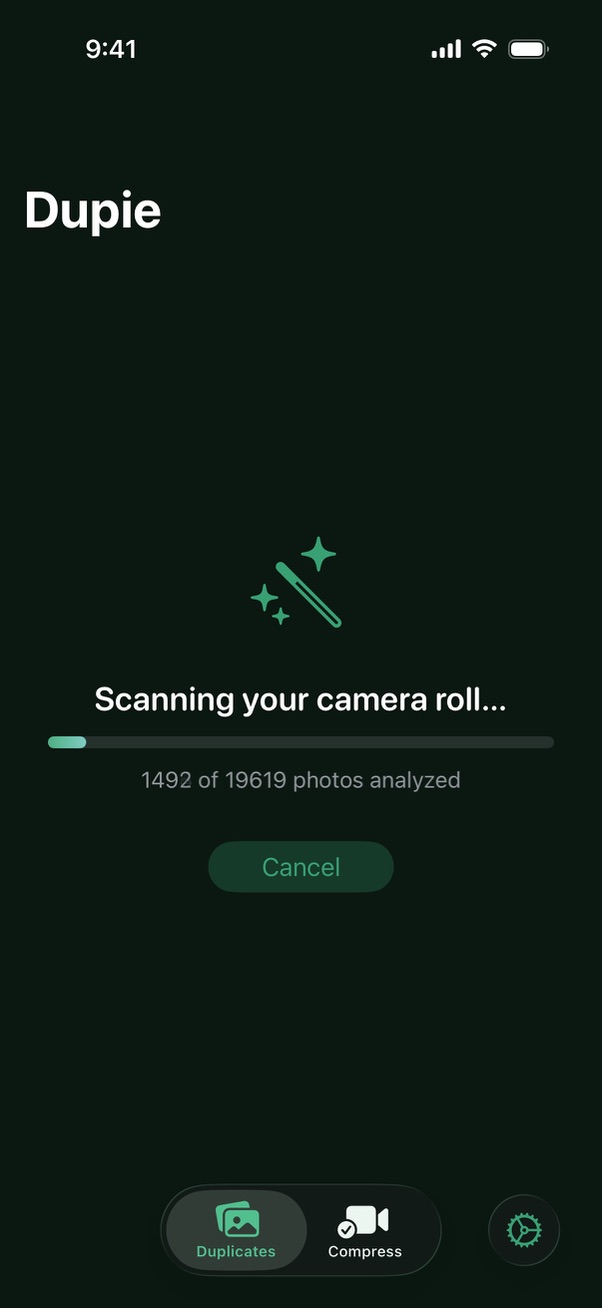
Open Dupie on your iPhone. The first time you launch it, you'll be asked to grant access to your photo library — tap Allow Full Access. Then tap Scan for Duplicates on the main screen. Dupie's AI will scan your entire photo library — every photo, every burst, every screenshot. Your photos never leave your device.
2

Review your duplicate groups

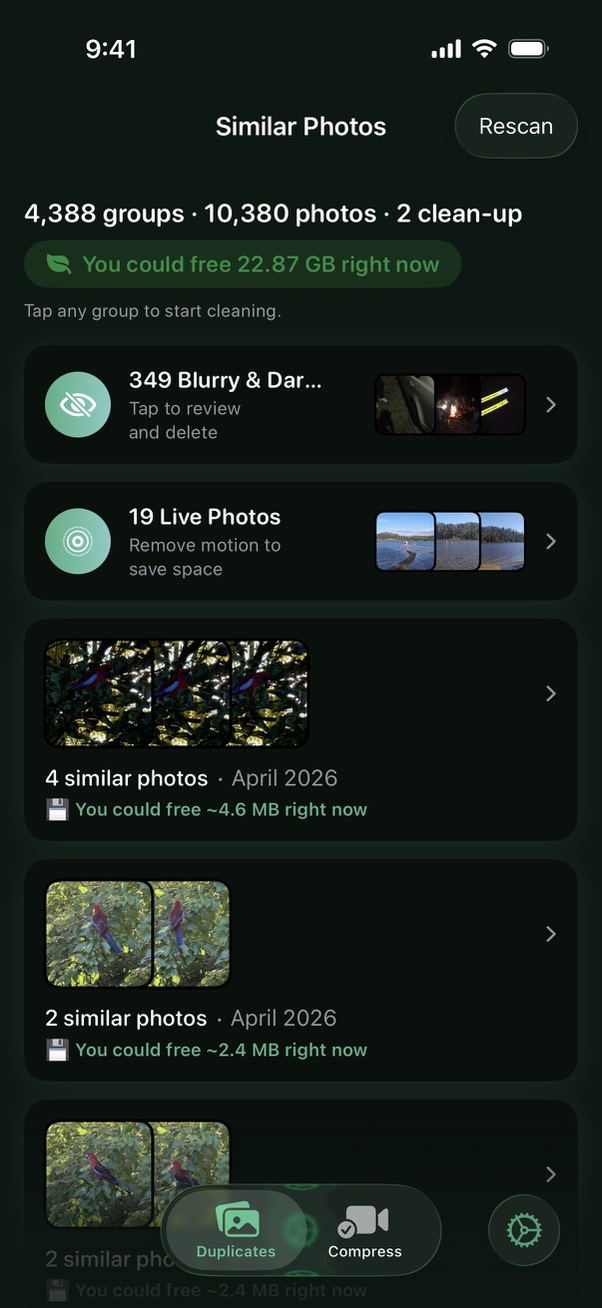
After scanning, Dupie shows you groups of duplicate and similar photos. Each group displays the photos in a gallery style format and highlights which one it recommends keeping, based on sharpness, lighting, and composition. You can pinch and zoom on any photo to take a closer look.
3

Select which photos to delete

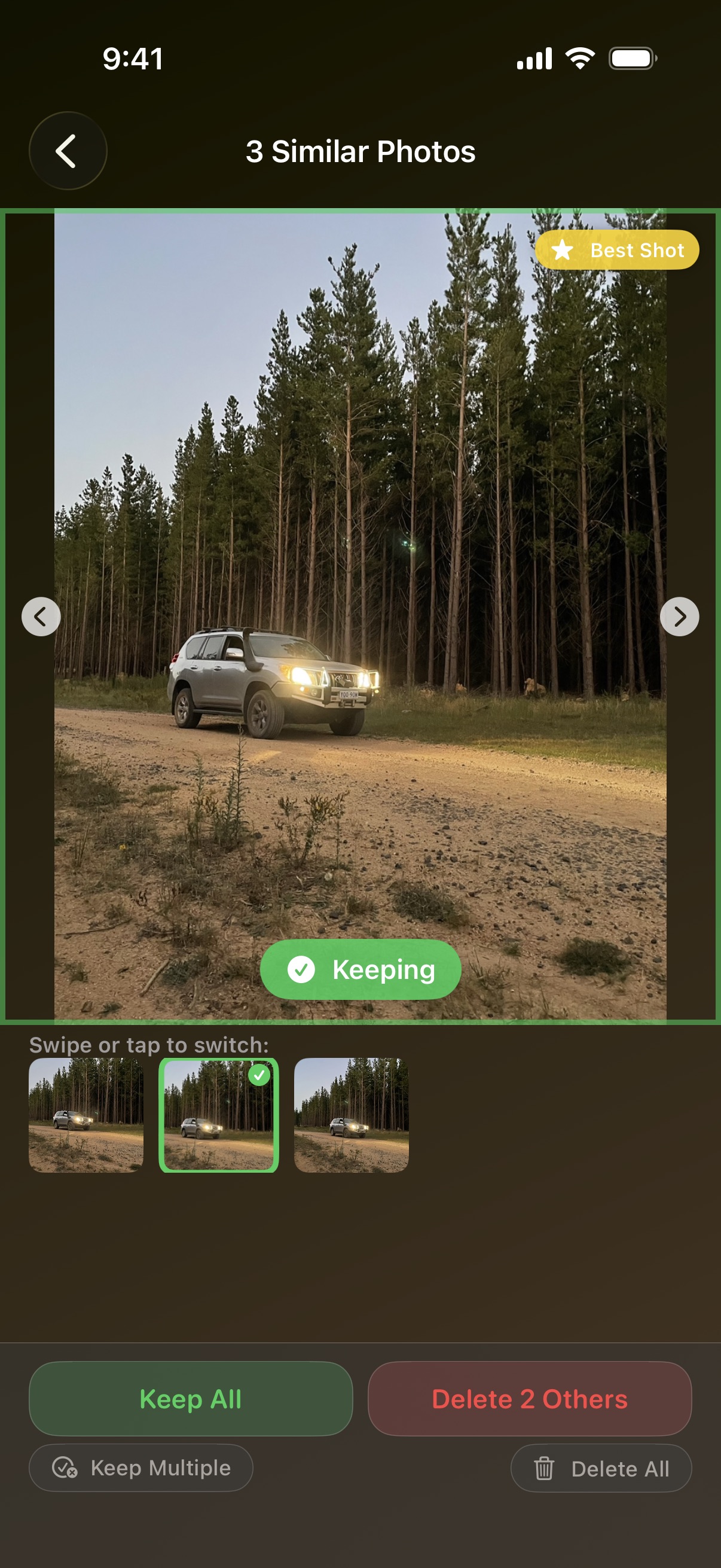
Dupie automatically selects the lower-quality copies for deletion. You can agree with its suggestion or tap to change your selection. The recommended photo to keep is highlighted with a green checkmark.
4

Delete and free up space

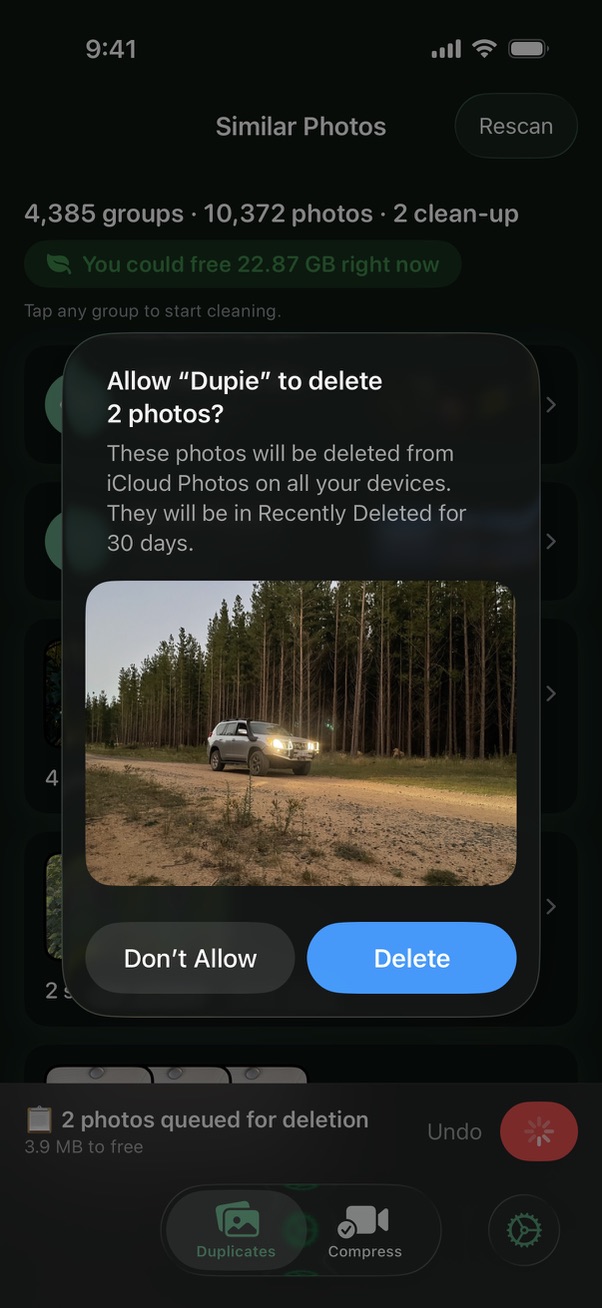
Duplicate photos get batched up for deletion. Once you're done, tap the delete button and confirm. The duplicates move to your iPhone's Recently Deleted album — they stay there for 30 days so you can restore anything if needed. Dupie shows you exactly how much storage you've just recovered.
Ready to clean up your camera roll? Dupie is free to download and starts finding duplicates immediately.

Download Dupie Free →

Frequently asked questions

Dupie lets you choose which copy to keep. By default it recommends the highest-quality version — usually the sharpest, best-exposed shot — and marks the rest for deletion. You can always override its suggestion before anything is deleted.
Yes. Deleted photos go to your iPhone's Recently Deleted album for 30 days before being permanently removed. You can restore any photo within that window through the Photos app. Dupie never permanently deletes anything without your explicit confirmation.
Yes. If you use iCloud Photos, Dupie scans your full library as it appears on your device. Deleting duplicates through Dupie removes them from iCloud too — so you free up both your iPhone storage and your iCloud storage quota at the same time.
No. All scanning and AI processing happens entirely on your device. Your photos are never uploaded, shared, or sent anywhere. Dupie is fully private.
Yes. Dupie uses AI to detect both exact duplicates and near-identical photos — like multiple shots of the same scene taken in burst mode, the same photo in different formats, or screenshots of the same content saved at different times.